Rowin Mol · October 6, 2026 · (2 months ago) · 6 min reading time · updated Nov 20
In short
A guest list almost always starts in Excel. Type all the names in, done. Until you start counting. Is your cousin's new boyfriend coming? Are the children there for dinner or only for the party? And who has actually replied already?
We started with a spreadsheet too. The list itself was quick to make. Keeping it up to date afterwards was where the time went.
Short answer: in Excel, put every guest on their own row and give everyone who shares an invitation the same group name. Track attendance for each part of the day in its own column, and add a column for dietary requirements. Then one filter tells you how many people are at dinner. Our free template already has this set-up; you can request it below.
Agree together in advance which columns you will use. If you add a column halfway through, you will be missing that information for everyone who was already on the list. You need these columns at the very least: first name, surname, group and one column per part of the day. Useful on top of that: email address, child yes/no and dietary requirements.
Rather not build it yourself? Our free template already has the columns, dropdown lists and a short explanation, with the parts of the day Ceremony, Dinner and Party.
Free guest list template for Excel. Columns, dropdown lists and the parts of the day Ceremony, Dinner and Party are already in it. Enter your email address and it lands in your inbox.
Put every guest on their own row, children included. "The Jansen family (4)" on one row looks handy, but later you won't know who is coming and who eats what. With one row per person you can record a dietary requirement for each guest, and your count adds up.
Give everyone who shares an invitation the same group name, for example The Jansen family or Sanne & Tom. That way you see at a glance how many invitations you are sending, and that is always fewer than your number of guests.
A plus-one belongs in the same group as the guest who brings them, on their own row. Don't know the name yet? Put Sanne's plus-one for now. That seat already counts, and you won't forget to ask for the name later.
Not everyone is there for everything. So make a column for each part of the day, such as ceremony, dinner and party, and track each guest's status in it: not invited, no reply yet, attending or not attending. That keeps invitation and reply in one column, so you don't need a separate status column. Count the number of times attending appears in the Dinner column (with COUNTIF, for example) and you know straight away how many seats you need there. In our template you pick these values from a dropdown list as short codes: attending is ACCEPTED, not attending is DECLINED, no reply yet is UNKNOWN and not invited is UNINVITED.
Note dietary requirements per guest, separated by a comma: vegetarian, nut allergy. Always use the same words, so you can filter on them when the caterer asks for numbers. Read more in keeping track of dietary requirements for your wedding.
Every reply that comes in goes into the part-of-the-day columns: attending or not attending. Filter on no reply yet and you can see who you still need to chase.
That works as long as one person keeps the list. But replies come from everywhere: via WhatsApp, via your mum, in passing at a birthday party. We collected the addresses for the invitations via WhatsApp too. So agree who processes the replies, and pick a date on which you message everyone who hasn't replied yet.
What often goes wrong: several versions are doing the rounds. You work in one, your partner in an emailed copy, and neither is quite right any more. A few things that help:
For making your list, Excel is fine. It gets tricky once the replies come in, because you retype every reply, including part of the day and dietary requirement. Then you enter the same people again in your seating plan, and sooner or later a cancellation or a nut allergy slips through. That is what it looked like at our own wedding too. The guest list was in Excel, but the replies came in via the form in the first version of BruiloftBuddy, in two tables: one for day guests and one for evening guests. They weren't connected to the guest list, so for the seating plan, also in Excel, we entered everyone all over again.
In BruiloftBuddy, guests look up their own name on your RSVP page and tell you themselves whether they are coming, for which part of the day and what they eat. You approve each reply with one click, after which the part of the day and dietary requirements are stored with that guest in your guest list. You see those dietary requirements again on the floor plan. Your existing list moves across in one go.
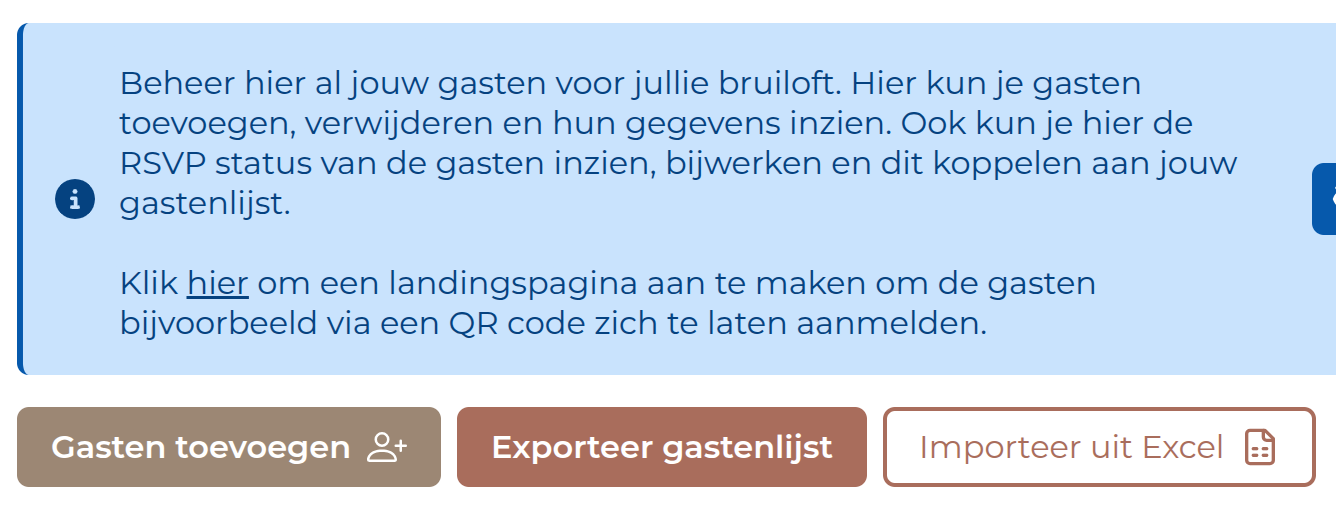
On your guest list in the app, click Import from Excel. Download the template for your wedding there: it has a column for every part of the day you have created, and the required columns are marked with a *. Already using our free template? You can simply upload that too. Do your parts of the day have different names in the app than in the file, for example Evening party instead of Party? Then you match each column to the right part of the day in the overview, so no replies get lost.
Copy your guests into it and upload the file. Nothing is saved yet at that point. First you see:
If there are already guests on your list, you choose between add and replace. Add puts the guests from your file alongside the existing ones. Replace rebuilds your whole guest list from scratch, including the replies you have already approved.
The replies you already have come along: whatever you filled in per part of the day is stored with the guest after the import. An empty cell becomes no reply yet. Added extra columns of your own? They are ignored, and the overview tells you so.
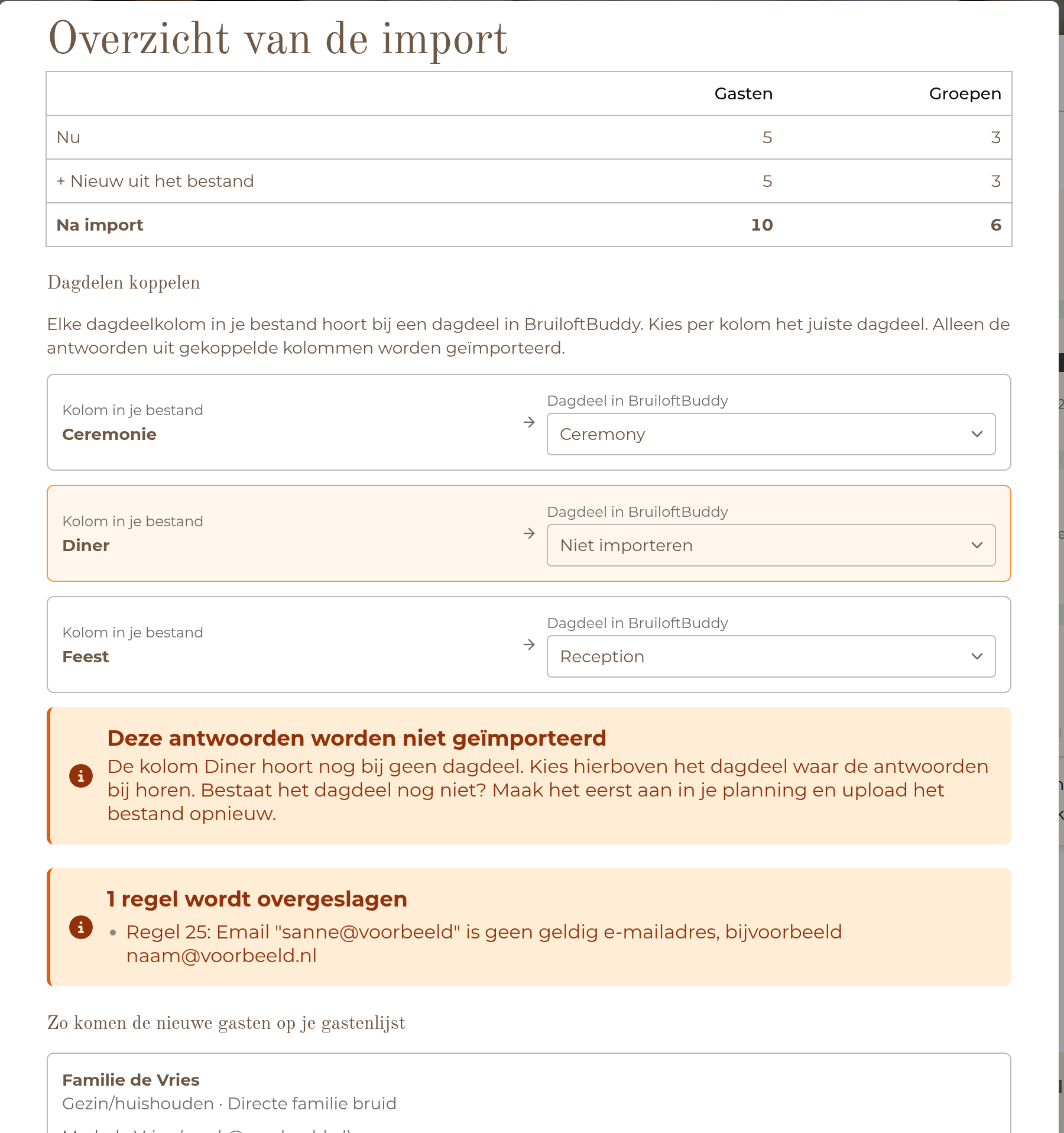
Most messages are quick to fix:

Rowin Mol
Rowin Mol is the founder of BruiloftBuddy. He got married in 2024 and, while planning his own wedding, found that on top of the tools he was using he still needed a separate spreadsheet for the guest list, attendance and the wedding day timeline.
Out of that frustration he built BruiloftBuddy: the platform he wished he'd had himself.
Try it yourself
Build your own wedding website
The editor on the homepage is the real editor, not a video. You see what you're making straight away.
Open the editorRowin Mol
Rowin Mol is the founder of BruiloftBuddy. He got married in 2024 and, while planning his own wedding, found that on top of the tools he was using he still needed a separate spreadsheet for the guest list, attendance and the wedding day timeline.
Out of that frustration he built BruiloftBuddy: the platform he wished he'd had himself.
Try it yourself
Build your own wedding website
The editor on the homepage is the real editor, not a video. You see what you're making straight away.
Open the editorAt least first name, surname, a group name per household and a column per part of the day where you track whether someone is coming. Useful extras: email address, whether someone is a child, and dietary requirements.
As a separate line, in the same group as the guest who is bringing them. If you don't know their name yet, add a placeholder you will recognise, such as Sanne's plus-one, and update it as soon as you know.
Yes. In your guest list, click Import from Excel, fill in the template and upload it. You see an overview first; only then are the guests saved. It works for up to 1,000 guests and 5 MB per file.
If you choose add, the guests from your file are added and your list stays as it is. If you choose replace, you replace the whole guest list, including replies you have already approved.
Want to get started right away? Enter your email address and the template lands in your inbox. It has the same format as the template in the app, so whatever you fill in now moves across later in one go.
Once your list is in, the part where Excel can't help begins: replies your guests fill in themselves, and a seating plan where you drag guests to their seats.


